The University of Tokyo has university-wide contracts for cloud services provided by Google, Microsoft, and others, which are made available for use by its members. However, when focusing on the amount of data that can be stored in the cloud, there are currently very few services that can be used with unlimited storage capacity. Users are therefore required to use these services within certain limits, or they may be asked to share the cost if they wish to use them beyond those limits.
This article provides an overview of these storage limits, as well as the conditions and methods for using the services beyond those limits.
| Cloud Storage Name | Eligible Users | Storage Capacity | How to Increase Storage Capacity | Notes |
|---|---|---|---|---|
| ECCS Cloud Email (Google Workspace) | Students, faculty, and staff | Up to 125 GB per user | Pay the usage fee using a university budget | Total combined storage for Gmail, Google Drive, and Google Photo |
| OneDrive | Students, faculty, and staff | Up to 50 GB per user | Pay the usage fee using a university budget | Does not include staff email |
| Microsoft Teams Folders | Faculty and staff members | Up to 100 GB per organization | Pay the usage fee using a university budget |
How to Think About Storage Capacity
Is the “Owner” an Individual or a Group?
When comparing the terms and conditions of different cloud storage services, there is an important concept you should understand first. Depending on the cloud storage service, the “owner” of files and folders may be either an individual or a group. In most cases, files and folders stored in cloud storage are owned by a specific individual’s account. Therefore, if that person leaves the shared group (for example, due to graduation, retirement, or a transfer), it is necessary to take steps in advance, such as transferring ownership of the files and folders to another person. To address this issue, some services provide a feature that allows multiple users to jointly act as the “owner”. Such functionality is available in the shared drives in Google Drive and team folders in Microsoft Teams. Therefore, if you wish to share files on an ongoing basis within a group or organization where members may change, we recommend using shared drives in Google Drive or team folders in Microsoft Teams.Please read the following sections with this distinction in mind
How Storage Usage Is Calculated
In Google Workspace, storage usage is calculated as the total amount used by Gmail, Google Drive, and Google Photos. Within Google Drive, there are My Drive, which is owned by an individual, and shared drives, which are owned by a group. In principle, only the storage used in My Drive is counted toward your storage usage. This includes files and folders stored in My Drive that are shared with others (so-called “shared items”).However, if you are designated as a “representative” of a shared drive, the storage usage of that shared drive is also included in your calculation. You can check whether you are a representative of a shared drive onthe Shared Drive Management screen in the ECCS Storage Management System. For details on how storage usage is calculated, see 「the page About the ECCS Storage Management System](/google/drive/storage/)」.(only in Japanese)
On the other hand, storage usage is calculated separately for Microsoft services such as OneDrive,staff email(available only to faculty and staff members) ,and team folders in Microsoft Teams(available only to faculty and staff members).
For all storage services, files in the Trash are also included in the storage usage calculation. In addition, OneDrive has version history enabled, and previous versions of files are also included in the storage usage calculation. As a result, for large files, you can increase available storage space by deleting unnecessary past versions. For details, see the video “How to View Large Files and Delete Version History in OneDrive(sign-in with your UTokyo Account is required, only in Japanese) .
Storage Limits and How to Increase Storage Capacity
The details of the storage limits and the procedures for using storage beyond those limits are as follows.
These limits and procedures are defined as operational rules based on the university-wide contracts with each cloud service provider, in order to ensure fair and effective use by all members. Please note that significant changes to these limits and procedures may become necessary in the future due to changes in contract terms.
ECCS Cloud Email (Google Workspace)
ECCS Cloud Email (Google Workspace) can be used by each student and faculty/staff member with up to 125 GB of storage at no additional cost. If you are designated as a representative of a Shared drive, you must allocate storage to each shared drive within this limit so that the total usage remains within 125 GB. If you exceed the allocated storage capacity, you will no longer be able to add or edit files.
To use more than 125 GB of storage, it is necessary to pay a “usage fee” using the university’s budget. However, even if a member does not have access to a university budget, it is possible, through the relevant procedure, for a faculty or staff member who does have a budget to cover the usage fee on their behalf. For details on expanding storage capacity, see the page About the ECCS Storage Management System (only in Japanese).
You can check your actual storage usage, excluding shared drives, on Google’s Storage page. The actual storage usage of Shared drives can be checked on the Shared Drive Management screen in the ECCS Storage Management System.
OneDrive
OneDrive can be used by each student and faculty/staff member with up to 50 GB of storage at no additional cost. To use more than 50 GB of storage, it is necessary to pay a “usage fee” using the university’s budget. However, even if a member does not have access to a university budget, it is procedurally possible for a faculty or staff member who does have a budget to cover the usage fee on their behalf. For details on expanding storage capacity, see the page About Applying for OneDrive Storage Capacity Expansion (available only to faculty and staff members.
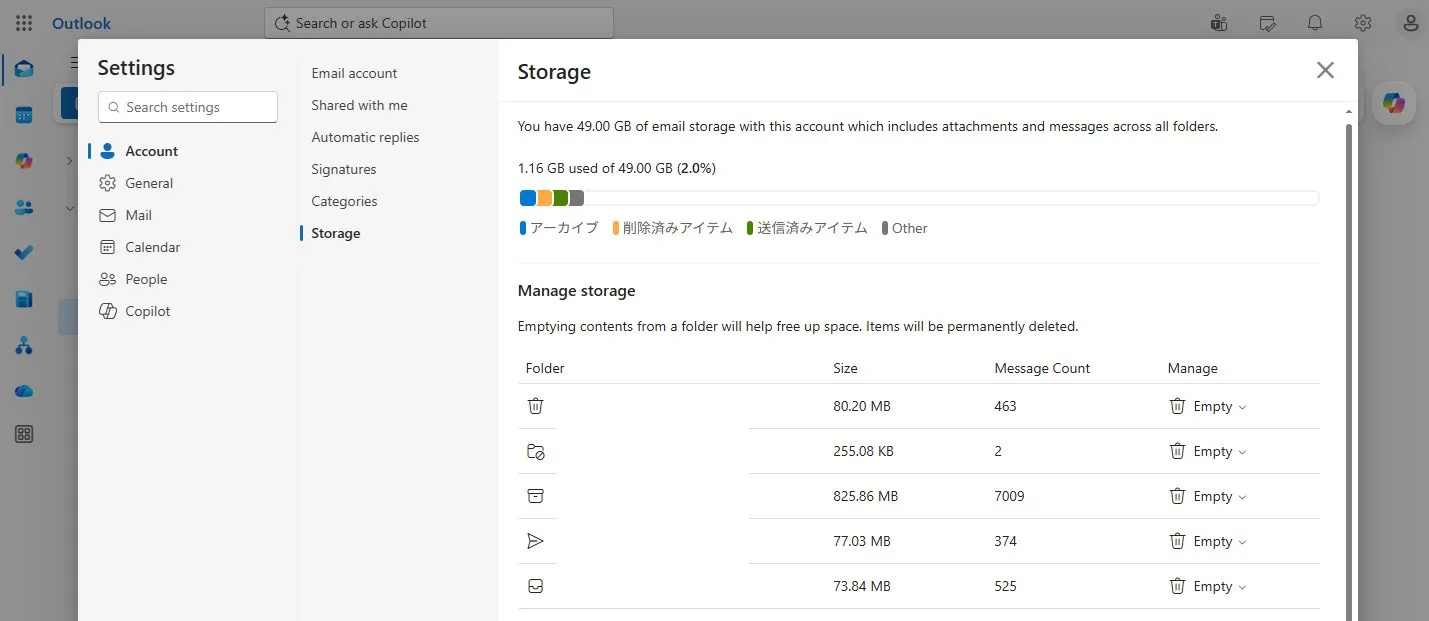
You can check your actual storage usage by accessing OneDrivein a browser and viewing the Storage section at the bottom left of the screen. By clicking the “Used Storage” button there, you can also view large files.
Microsoft Teams Folders
Microsoft Teams folders provide up to 100 GB of storage per organization at no additional cost. To use more than 100 GB, a usage fee must be paid using a university budget. If an organization uses multiple team spaces in Microsoft Teams, a usage fee may be required for the second and subsequent team spaces. For details on expanding storage capacity, see the Microsoft Teams Folder Storage Capacity Change App 」 page (available only to faculty and staff members).
You can check your actual storage usage in a browser. For detailed procedures, please refer to the video (available only to faculty and staff members).
Other Cloud Services
Staff Email
With staff email (available only to faculty and staff members), each faculty or staff member can store up to 50 GB of data. There is no option to expand the storage capacity.
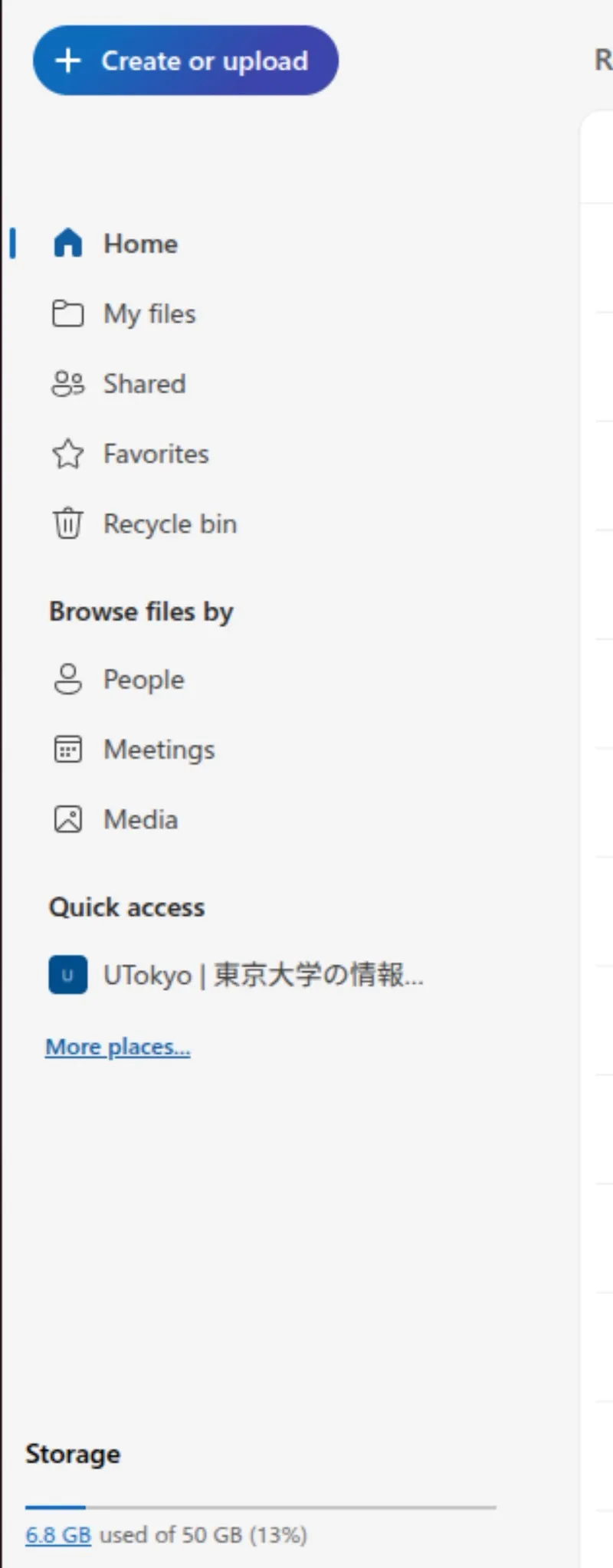
You can check the actual storage usage by accessing the relevant page in a browser. You can also display the storage information screen by following the steps below.
- Access Outlook in a browser.
- Click the gear icon, open Settings, then General, and then Storage, in that order.
Other Options
When publishing research data, please consider usingthe data platform mdx (Data Platform for the Promotion of Data Utilization), For storing non-public computational results and similar data, you may also consider using supercomputing systemsIn addition, you may consider individually subscribing to commercial cloud storage services such as Dropbox or Box.